
How to add Google Tag Manager to WordPress
Tag Manager comes as two small codes: one for the page header and one right after the body opens. Paste both once and you can add every other tag from Tag Manager.
- Time: About 5 minutes
- You need: A WordPress administrator login and a Tag Manager container
- Updated:
With Tag Manager installed, new tracking (Analytics, Google Ads conversions, the Meta pixel) is added inside Tag Manager instead of in your site’s code. If you use Site Kit, it can place the container for you: in Site Kit > Settings > Connect more services, set up Tag Manager and let Site Kit place the code.
Before you start
- A Tag Manager account with a web container for your site. Its ID starts with GTM-.
- The free WPCode plugin (search for it under Plugins > Add Plugin).
- If your Google Analytics tag is already pasted on the site, plan to remove it once Analytics runs inside Tag Manager, so visits aren’t counted twice.
Step 1: Open your container’s install codes
In Tag Manager, on the Workspace tab, click your container ID (GTM- followed by letters) at the top. The Install Google Tag Manager window shows two codes.
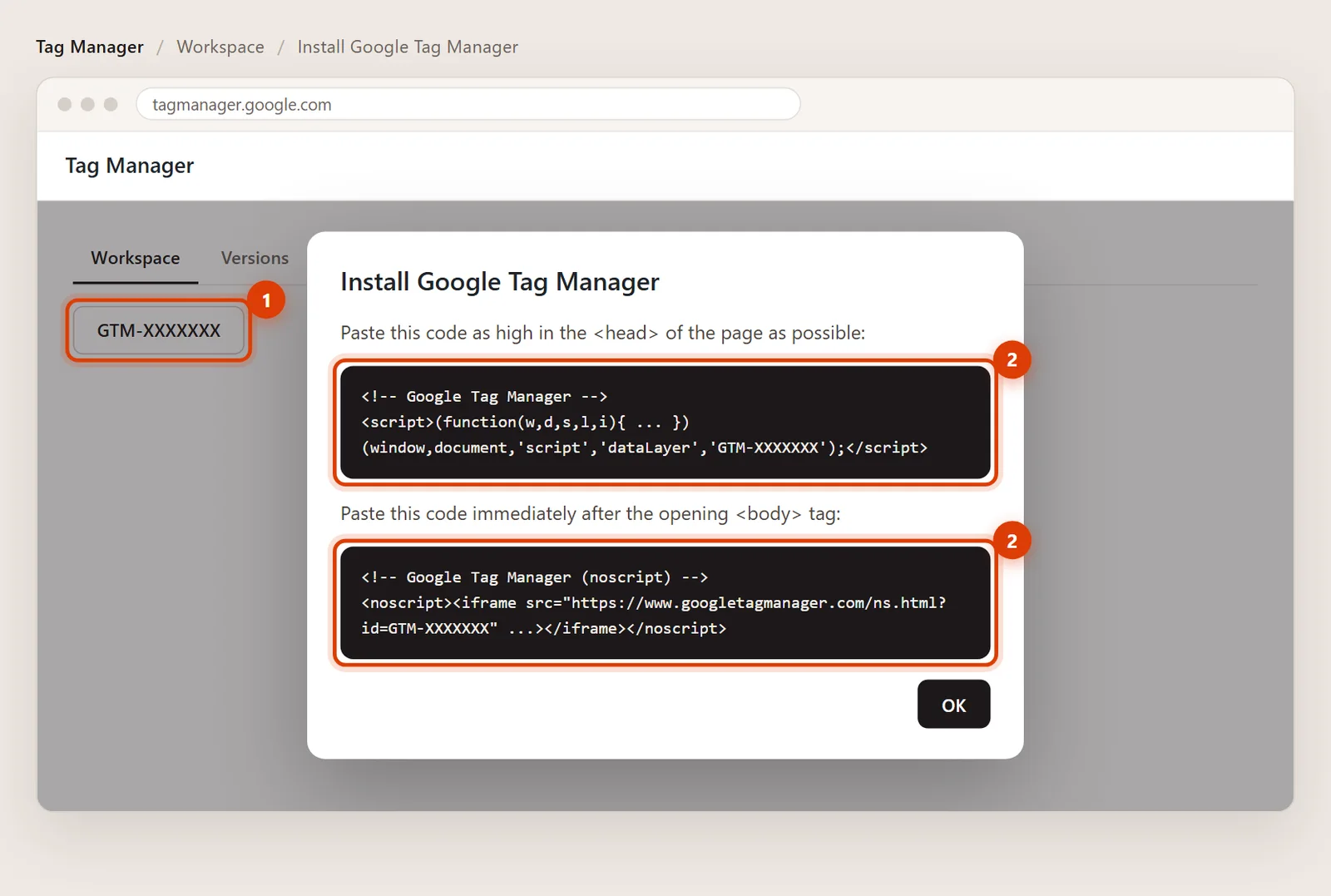
Illustration: click the GTM- ID to see both codes. Step 2: Open Header & Footer in WordPress
In your WordPress dashboard, go to Code Snippets > Header & Footer.
Step 3: Paste the first code into Header
Copy the first code (it starts with <!-- Google Tag Manager -->) and paste it into the Header box.
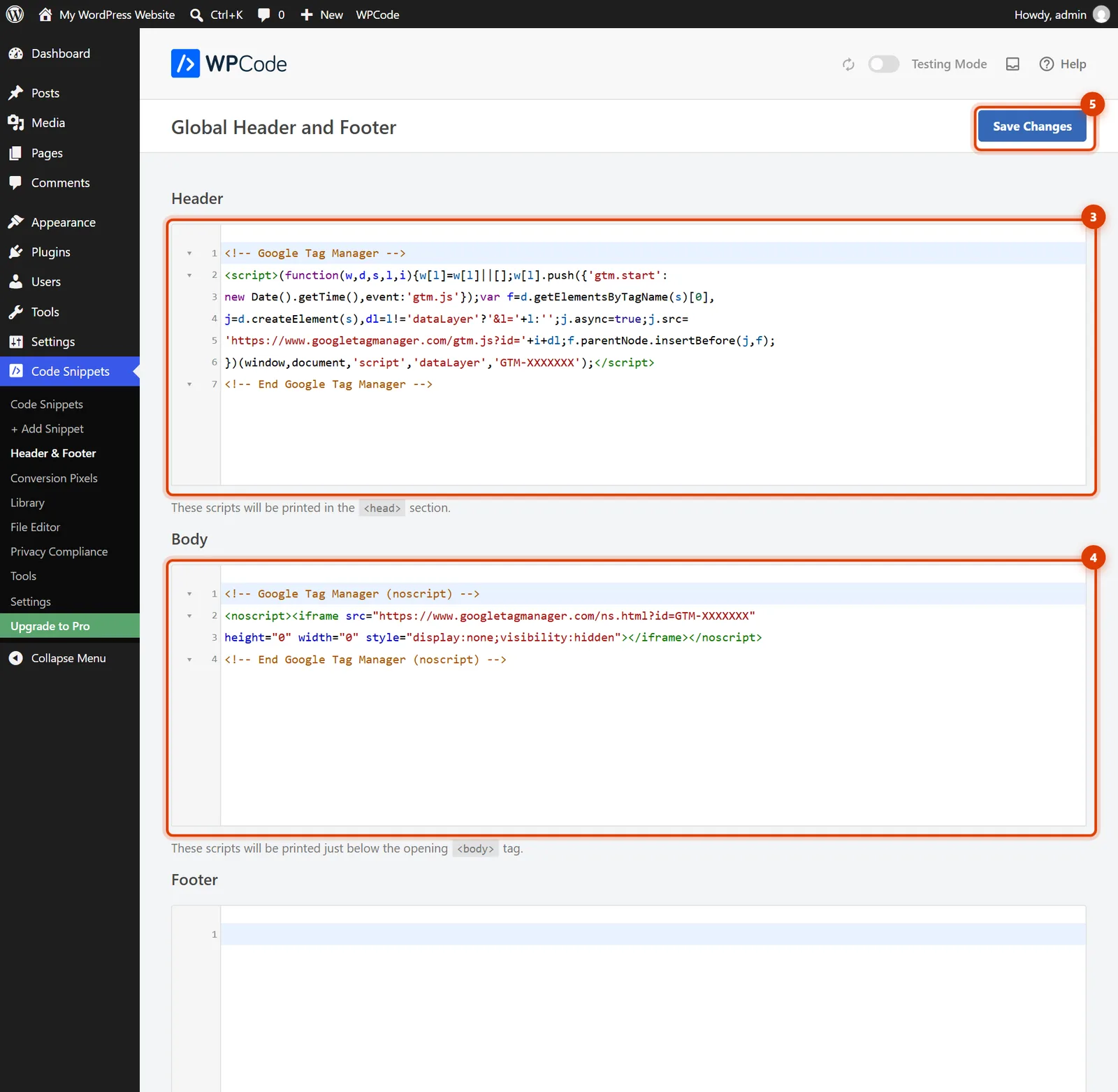
WordPress 7.1 with WPCode: code 1 in Header, code 2 in Body, then Save Changes. Step 4: Paste the second code into Body
Copy the second code (the one with noscript) and paste it into the Body box, just below Header.
Step 5: Save and test
Click Save Changes. Back in Tag Manager, click Preview, enter your website address and click Connect. If Tag Assistant says it’s connected, the container is working.
Quick answers
Can I skip the Body code?
The Header code does almost all the work. The Body code only matters for visitors with JavaScript turned off. Add both: it takes ten seconds.
I published a tag but nothing changed.
Tags only go live after you click Submit and Publish in Tag Manager. Preview mode only shows changes to you.
Official help pages
- Tag Manager Help: Install a web container (opens in a new tab)
- Site Kit by Google: Tag Manager (opens in a new tab)
- WPCode: How to add Google Tag Manager to WordPress (opens in a new tab)
Checked against these pages on November 3, 2026.
Related guides

How to add Google Analytics to WordPress
Add Google Analytics 4 to WordPress with Google’s Site Kit plugin or by pasting the Google tag with WPCode. Real WordPress 7.1 screenshots.

How to add custom code to the header or footer
Add code to the WordPress header, body or footer with the free WPCode plugin: Code Snippets > Header & Footer. Real WordPress 7.1 screenshots.

How to verify your WordPress site in Google Search Console
Verify a WordPress site in Google Search Console: add a URL-prefix property, paste the HTML tag into WPCode’s Header and click Verify. With screenshots.