
How to add Google Analytics to WordPress
Two safe ways to put Google Analytics 4 on a WordPress site: Google’s own Site Kit plugin, or the Google tag pasted into a header snippet. Both take about ten minutes.
- Time: About 10 minutes
- You need: A WordPress administrator login and a Google account
- Updated:
Google Analytics 4 (GA4) tells you how many people visit your site, where they come from and what they do. Pick one of the two methods below. Using both, or adding the tag twice, counts every visit twice.
Before you start
- Log in to your WordPress dashboard as an administrator.
- Use the Google account that should own your Analytics, ideally a business one, not a personal Gmail you might lose.
- Check that tracking isn’t already there: if your site uses Google Tag Manager, add Analytics inside Tag Manager instead.
Step 1: Install Site Kit by Google
Go to Plugins > Add Plugin, search for Site Kit by Google and click Install Now, then Activate. Make sure the author says By Google. Need more detail? See how to add a plugin in WordPress.
Step 2: Click Start setup
After activating, WordPress shows a Site Kit banner on the Plugins screen. Click Start setup. You can also open Site Kit > Dashboard in the left menu.
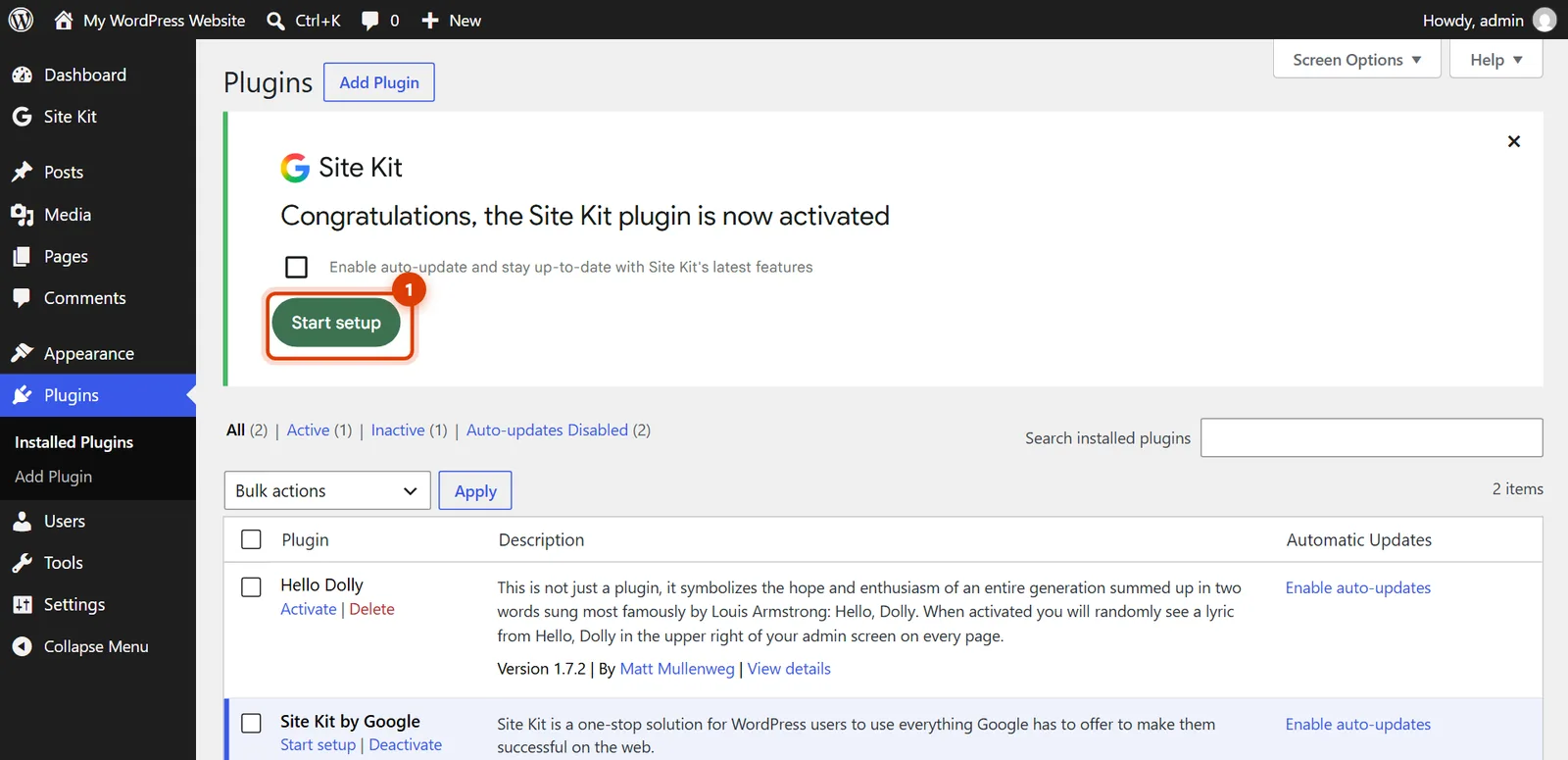
WordPress 7.1: Site Kit’s Start setup button. Step 3: Tick Analytics and sign in with Google
Tick Get visitor insights by connecting Google Analytics as part of setup, then click Sign in with Google. Choose your business Google account and allow the permissions it asks for.
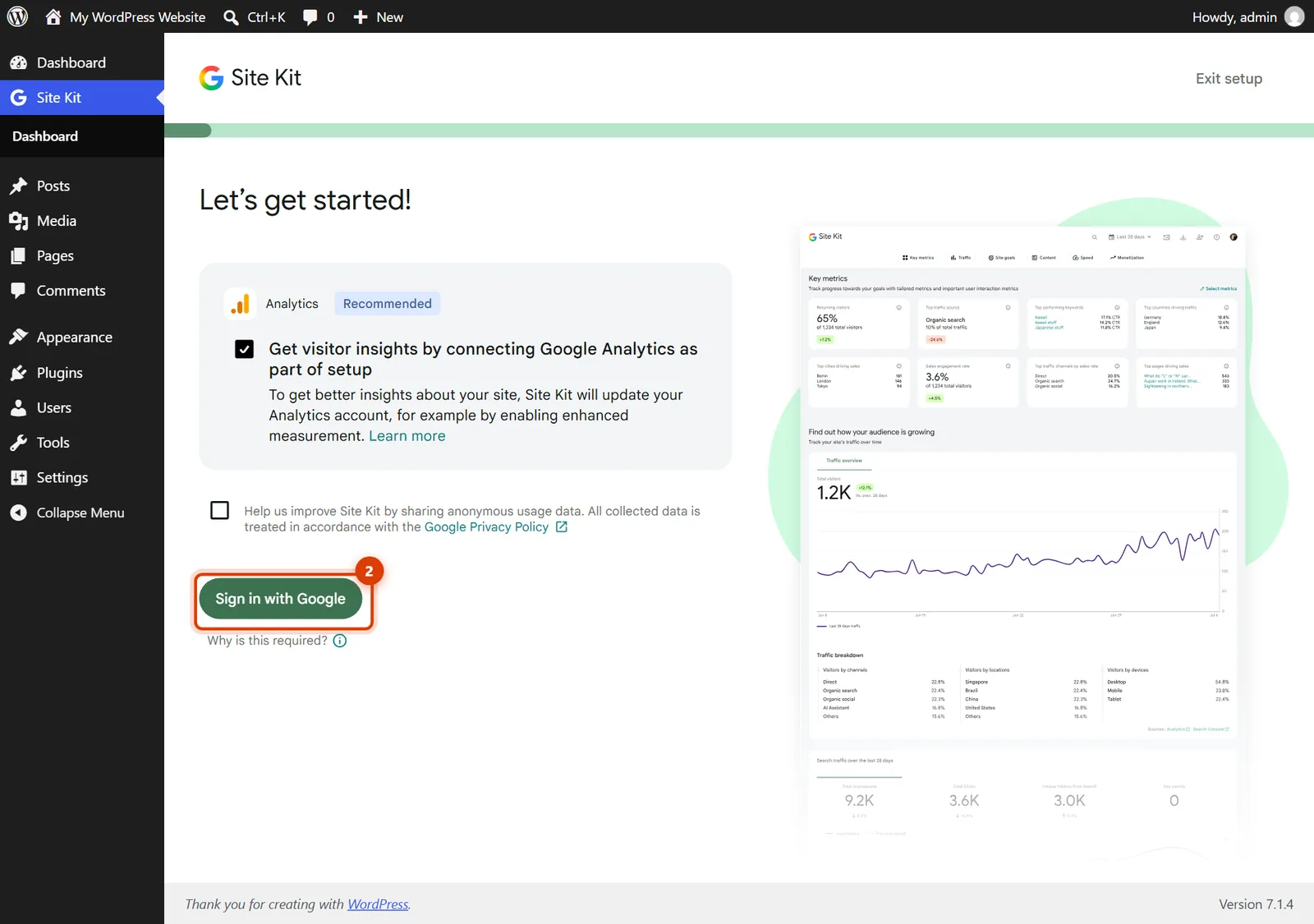
WordPress 7.1: Site Kit setup, signed in with your Google account next. Step 4: Finish the setup screens
Google asks you to Verify ownership, Allow metrics and set up Search Console. Then choose your Analytics account, or let Site Kit create one, and click Complete setup. Site Kit places the Analytics tag on every page for you.
Good to know: Site Kit won’t work on a staging copy or a site in maintenance mode. Do this on your live site.
Step 5: Or: paste the Google tag yourself
If you’d rather not add Site Kit, copy your tag from Google Analytics: Admin > Data streams, click your website, then View tag instructions > Install manually.
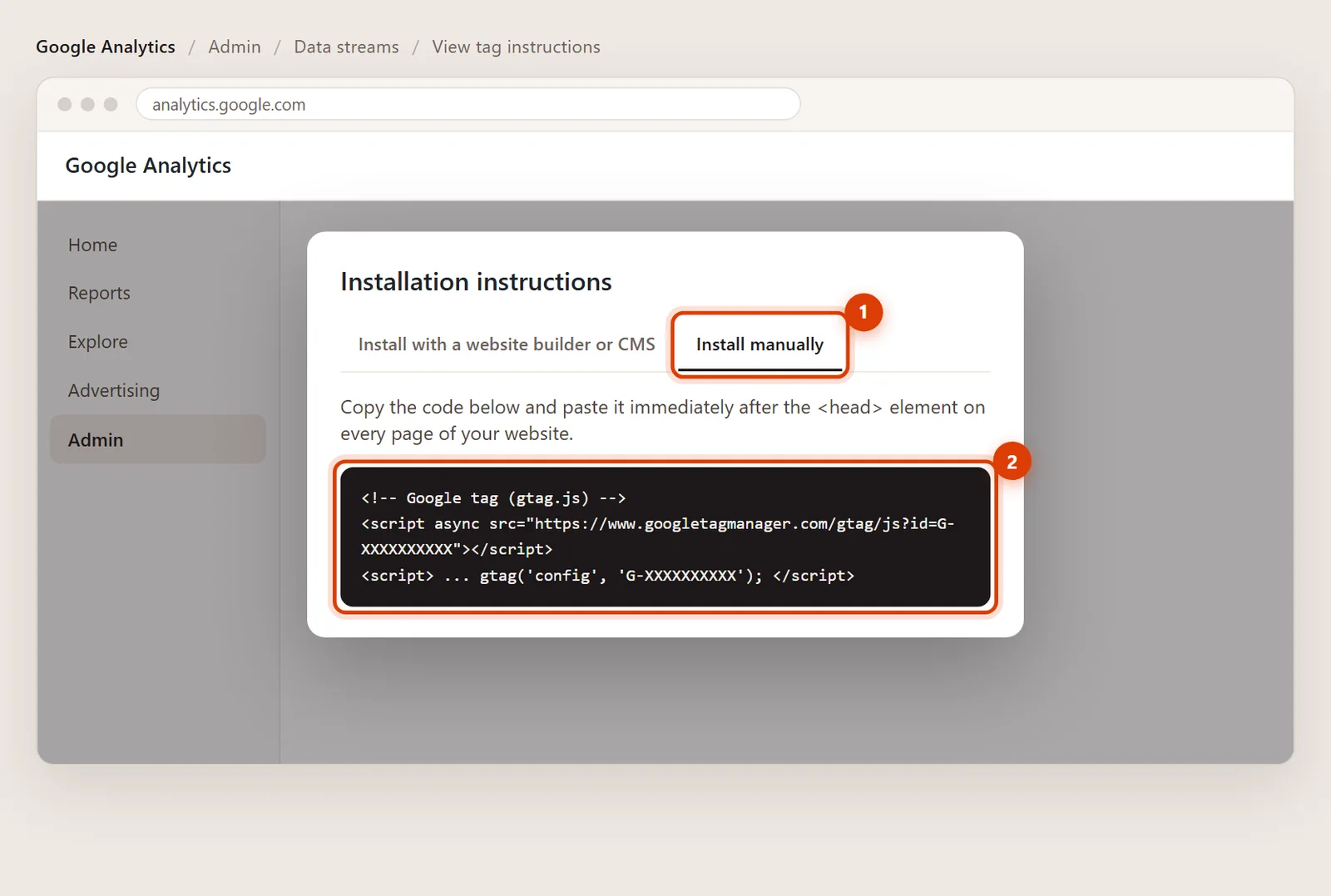
Illustration: Admin, Data streams, View tag instructions, Install manually. Step 6: Paste it into the Header box and save
Install the free WPCode plugin, go to Code Snippets > Header & Footer, paste the tag into Header and click Save Changes. The header and footer code guide covers this in detail.
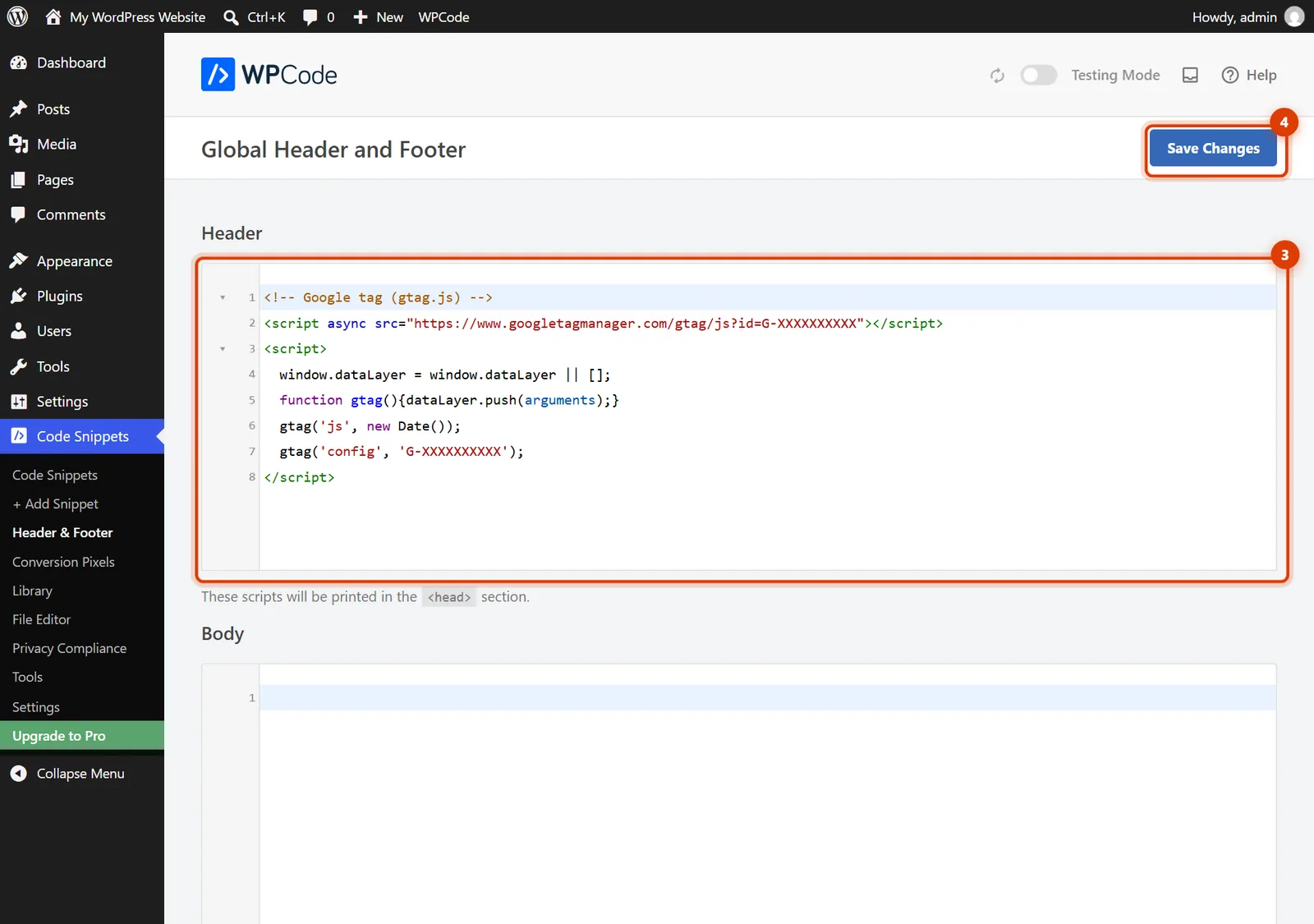
WordPress 7.1 with WPCode: the tag in Header, then Save Changes. Step 7: Check that it works
Open your website in a private browser window and click around for a minute. In Google Analytics, go to Reports > Realtime: you should see yourself as an active user within a minute or two.
Quick answers
Site Kit or the tag: which is better?
For most small business sites, Site Kit. It’s made by Google, places the tag correctly, keeps it updated and shows your numbers inside WordPress. Paste the tag yourself only if you want fewer plugins.
My visits look doubled.
The tag is probably on the site twice, for example Site Kit plus a pasted tag, or a tag plus Google Tag Manager. Keep one and remove the other.
Do I need a cookie banner?
It depends on where your visitors are and what your privacy policy says. If you serve visitors in Europe or California, ask me about consent before adding tracking.
Official help pages
- Site Kit by Google: Install and setup (opens in a new tab)
- Site Kit by Google: Analytics (opens in a new tab)
- Analytics Help: Set up Analytics for a website and/or app (opens in a new tab)
- WordPress.org: Site Kit by Google plugin (opens in a new tab)
Checked against these pages on November 3, 2026.
Related guides

How to add Google Tag Manager to WordPress
Add Google Tag Manager to WordPress: copy both container codes, paste them into WPCode’s Header and Body boxes and test. Real WordPress 7.1 screenshots.

How to verify your WordPress site in Google Search Console
Verify a WordPress site in Google Search Console: add a URL-prefix property, paste the HTML tag into WPCode’s Header and click Verify. With screenshots.

How to add the Meta Pixel to WordPress
Add the Meta (Facebook) Pixel to WordPress with Meta’s official plugin or by pasting the base code with WPCode. Real WordPress 7.1 screenshots.