
How to verify your WordPress site in Google Search Console
Before Search Console shows your data, Google needs proof you own the site. The quickest way on WordPress is a one-line meta tag in your header.
- Time: About 5 minutes
- You need: A WordPress administrator login and a Google account
- Updated:
Search Console shows which searches bring people to your site, which pages Google indexed and what’s broken. If you use Site Kit, it verifies your site automatically during setup and you can skip this guide.
Before you start
- The free WPCode plugin installed (Plugins > Add Plugin).
- Your site’s exact address, including https:// and whether it uses www.
- Leave the tag in place afterwards. Google rechecks it, and access lapses if it’s removed.
Step 1: Add your site as a URL-prefix property
Go to Search Console (opens in a new tab), open the property menu at the top left and click + Add property. Under URL prefix, type your full address, like https://www.yourbusiness.com/, and click Continue.
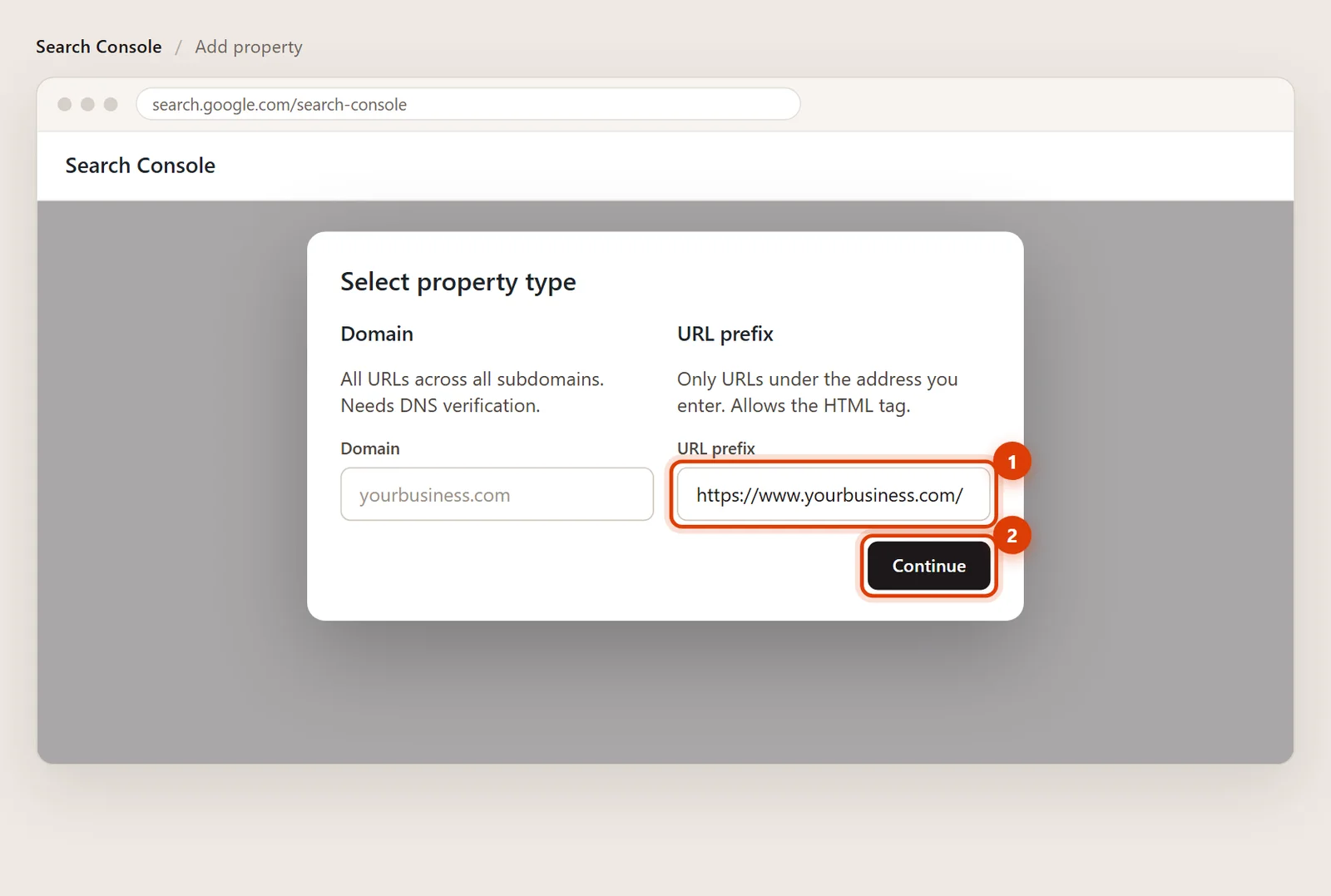
Illustration: URL prefix, then Continue. Step 2: Choose HTML tag and copy it
Under Other verification methods, open HTML tag and click Copy. The tag looks like <meta name="google-site-verification" ...>. Leave this window open.
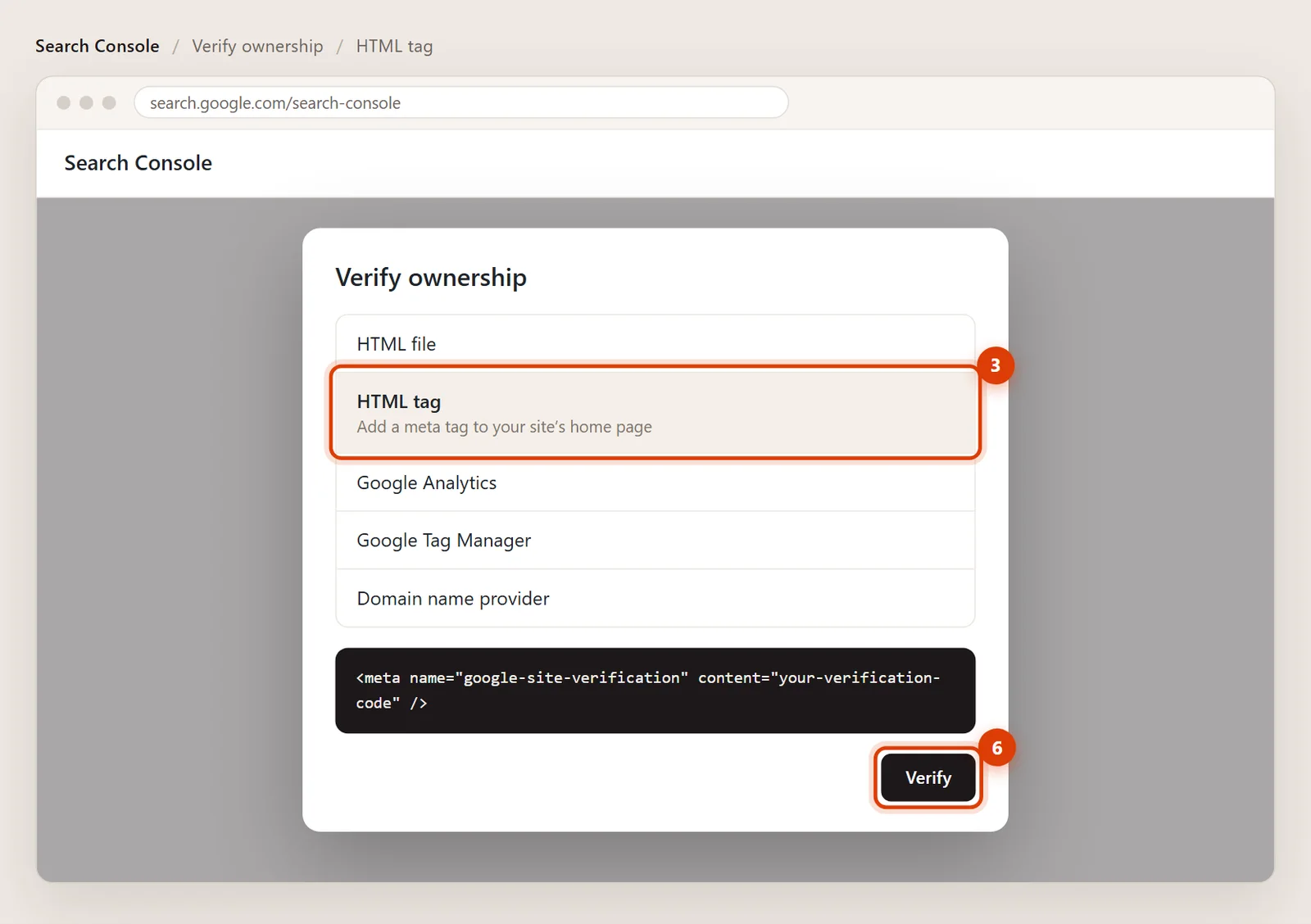
Illustration: HTML tag, copy it, Verify comes last. Step 3: Open Header & Footer in WordPress
In a new tab, open your WordPress dashboard and go to Code Snippets > Header & Footer.
Step 4: Paste the tag into Header and save
Paste the tag into the Header box, on its own line, and click Save Changes.
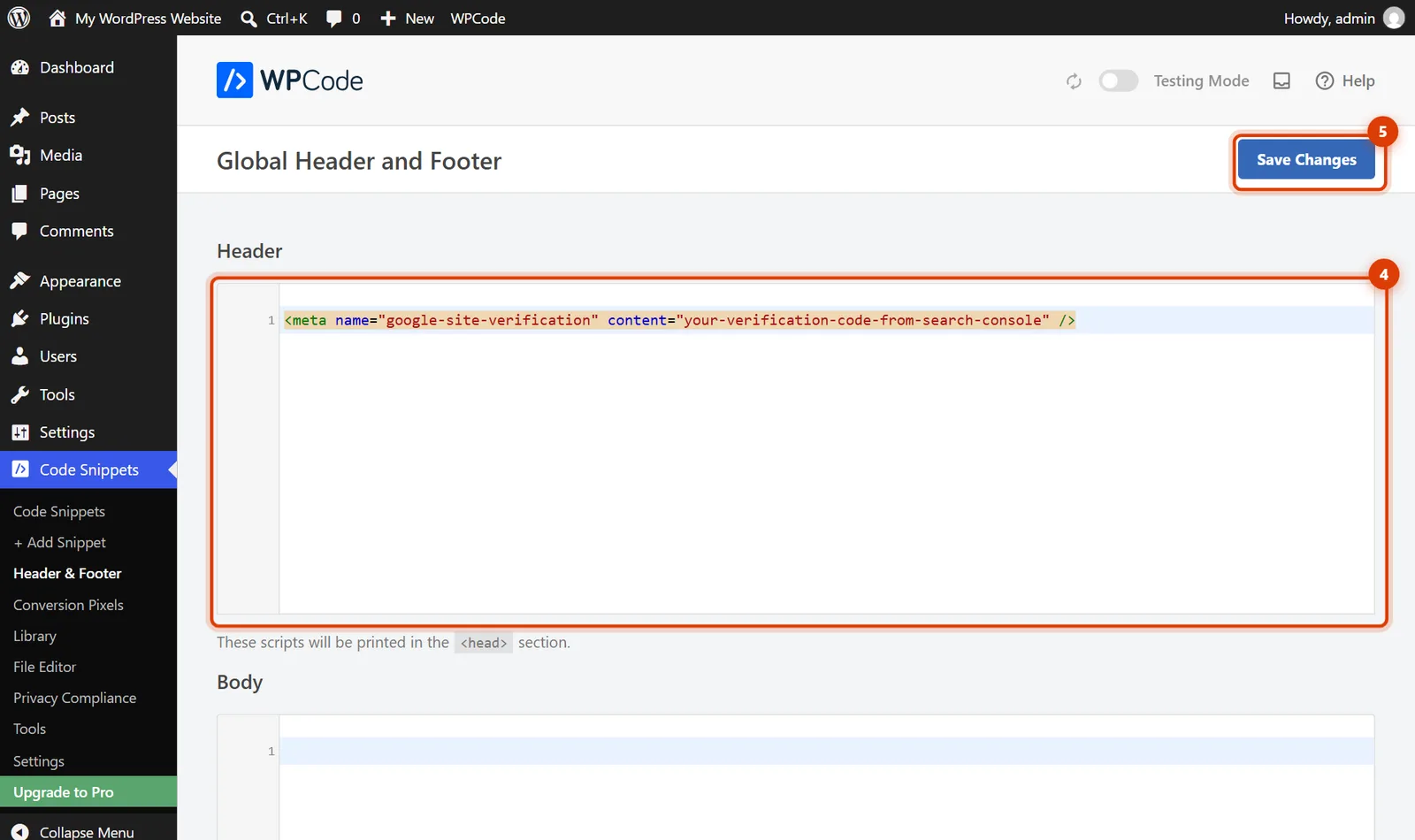
WordPress 7.1 with WPCode: the tag in Header, then Save Changes. Step 5: Click Verify
Back in Search Console, click Verify. You should see Ownership verified. If not, clear any caching plugin’s cache and try again.
The other options
- Site Kit by Google verifies automatically when you connect Search Console during setup.
- Domain property covers every version of your domain (www, non-www, subdomains) but needs a TXT record at your domain provider. If your domain is at GoDaddy, give me access and I’ll add it.
Quick answers
Google says it couldn’t find the tag.
Usually a cache is still showing the old page. Clear your caching plugin or host cache, then click Verify again. Also check that the address you entered matches your site exactly, including www.
Can I remove the tag after verifying?
No. Google checks it again from time to time and removes your access if it’s gone.
Official help pages
- Search Console Help: Verify your site ownership (opens in a new tab)
- Search Console Help: Add a website or platform property to Search Console (opens in a new tab)
- Site Kit by Google: Search Console (opens in a new tab)
Checked against these pages on November 3, 2026.
Related guides
How to add Google Analytics to WordPress
Add Google Analytics 4 to WordPress with Google’s Site Kit plugin or by pasting the Google tag with WPCode. Real WordPress 7.1 screenshots.

How to add custom code to the header or footer
Add code to the WordPress header, body or footer with the free WPCode plugin: Code Snippets > Header & Footer. Real WordPress 7.1 screenshots.
How to add Google Tag Manager to WordPress
Add Google Tag Manager to WordPress: copy both container codes, paste them into WPCode’s Header and Body boxes and test. Real WordPress 7.1 screenshots.