
How to add the Meta Pixel to WordPress
The Meta Pixel tells Facebook and Instagram which ad visitors became leads or customers. Add it once, with Meta’s own plugin or by pasting the code.
- Time: About 10 minutes
- You need: A WordPress administrator login and access to Meta Events Manager
- Updated:
Meta now calls the pixel a dataset in Events Manager, but it’s the same thing. Choose one method. Installing it twice (plugin plus pasted code, or code plus Tag Manager) counts every visit twice and confuses your ad results.
Before you start
- A pixel in Meta Events Manager (opens in a new tab). To create one: Connect data > Web > Connect, name it and click Create pixel.
- A WordPress administrator login.
- If your site uses Google Tag Manager, add the pixel inside Tag Manager instead.
Step 1: Option A: install Meta’s plugin
Go to Plugins > Add Plugin and search for Meta pixel for WordPress.
Step 2: Install and activate the plugin by Facebook
Find the plugin whose author is By Facebook, click Install Now, then Activate.
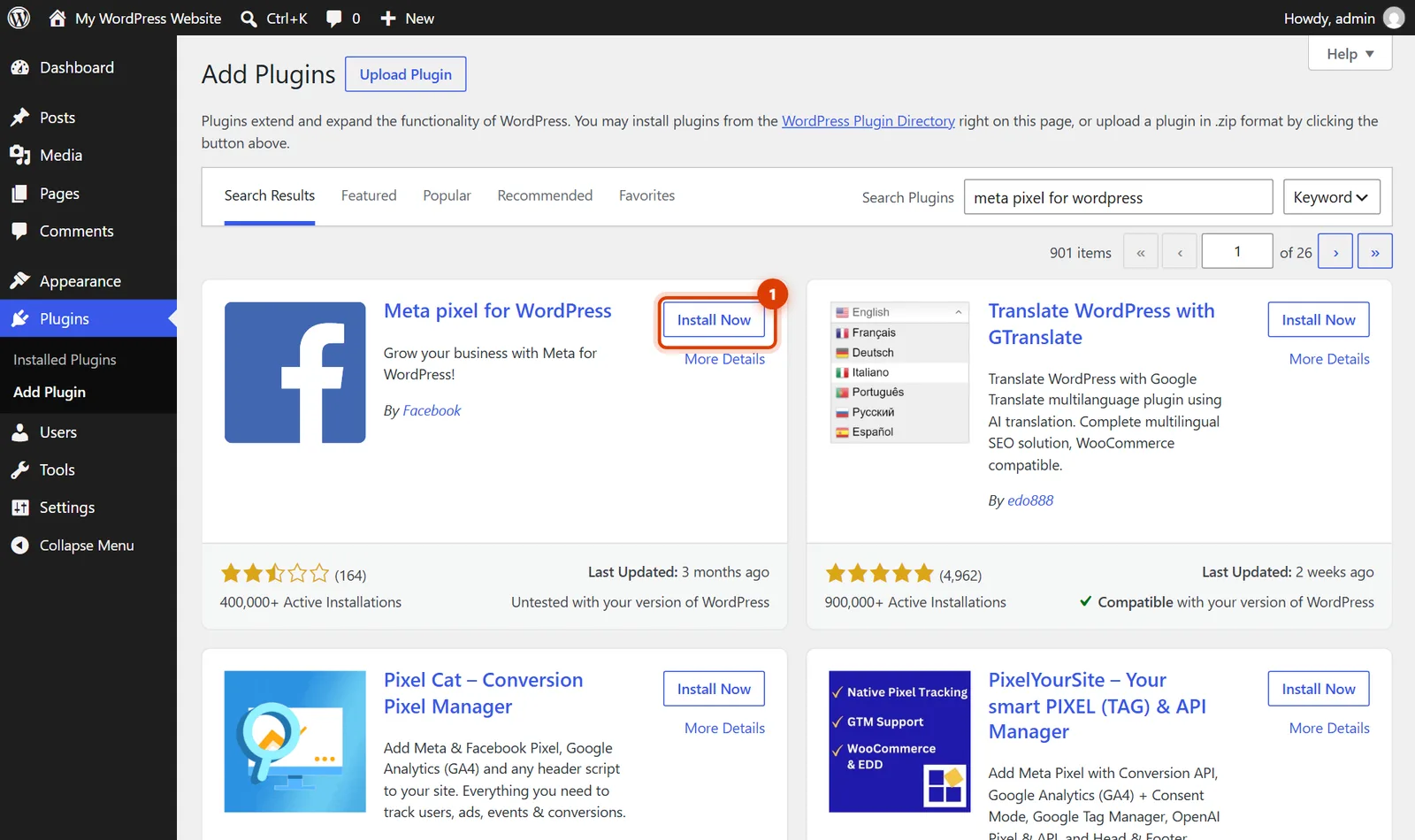
WordPress 7.1: the official Meta pixel plugin in the plugin search. Step 3: Connect it to your Meta account
Open the plugin’s settings page, click Get Started and log in to Facebook. Choose your business portfolio and your pixel, and agree to the connection. The plugin then adds the pixel to every page.
Running a WooCommerce shop? Use Meta for WooCommerce instead. It adds the pixel and keeps your products in sync with your Facebook and Instagram shop.
Step 4: Option B: copy the base code
In Events Manager, open your pixel and choose Install code manually (the exact path depends on Meta’s setup screens: Meta Pixel only > Install code manually). Copy the base code.
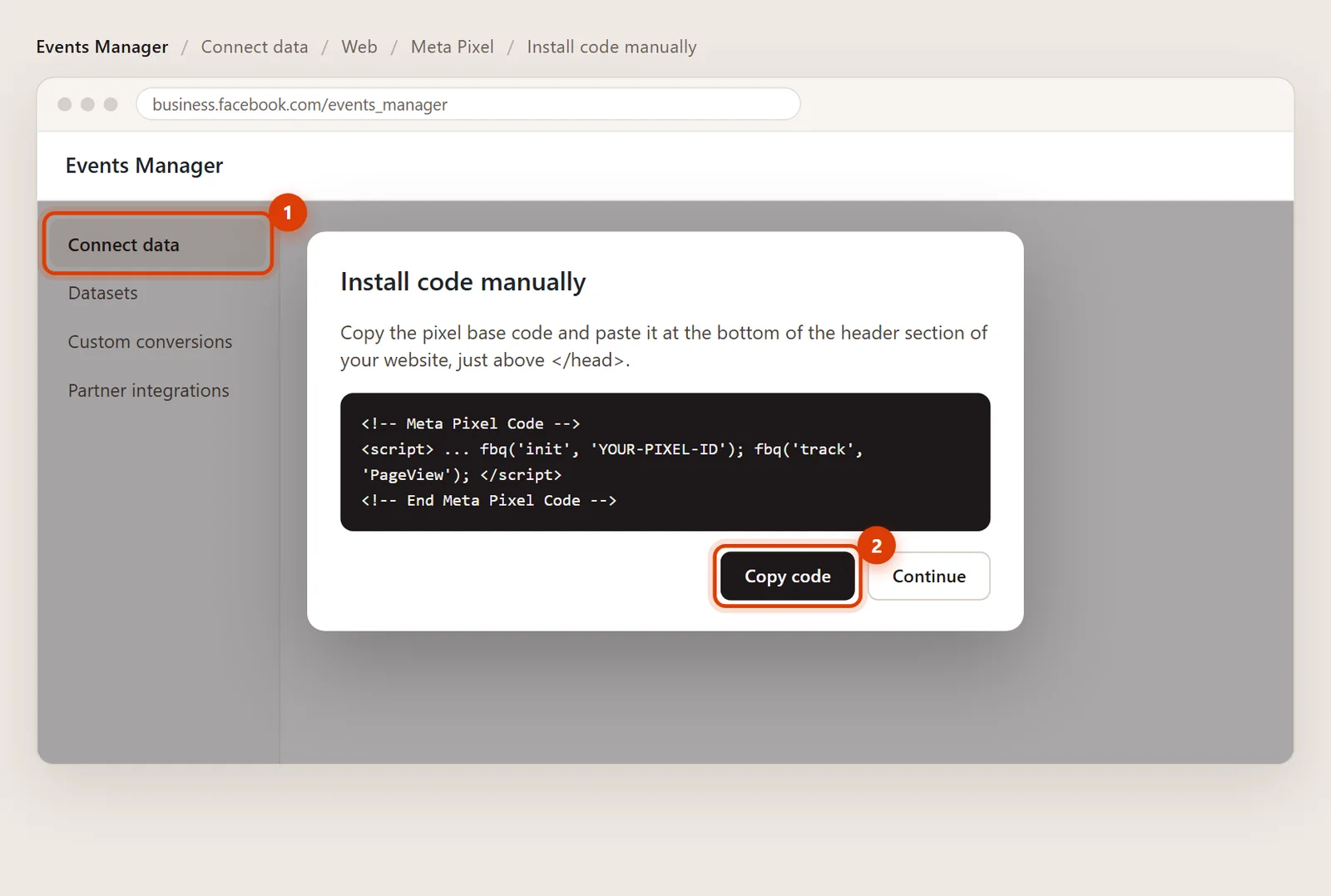
Illustration: Events Manager, Install code manually, Copy code. Step 5: Paste it into Header and save
In WordPress, go to Code Snippets > Header & Footer, paste the code into Header and click Save Changes.
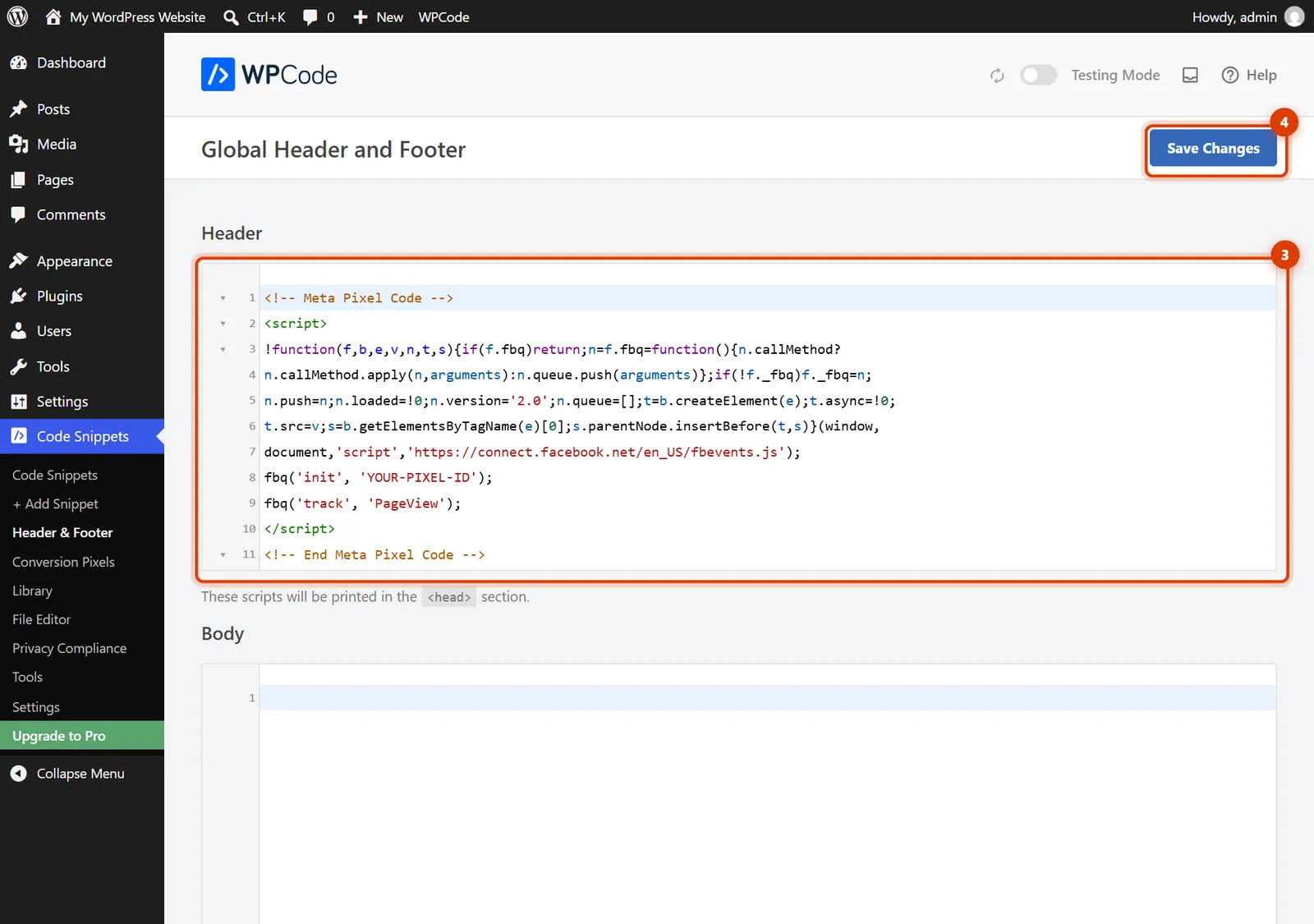
WordPress 7.1 with WPCode: the pixel code in Header, then Save Changes. Step 6: Test it
In Events Manager, open your pixel and use Test events: enter your website address, browse a page, and a PageView should appear within a minute.
Quick answers
Plugin or pasted code?
The plugin is easier and can also send events through Meta’s Conversions API, which Meta recommends. Pasted code is lighter and fine for tracking page views and simple leads.
Do I need to tell visitors about the pixel?
Yes. Your privacy policy should mention it, and visitors in some places need to agree first. Ask me if you’re unsure what your site needs.
Official help pages
- WordPress.org: Meta pixel for WordPress plugin (opens in a new tab)
- Meta Business Help: Set up and install the Meta Pixel (opens in a new tab)
Checked against these pages on November 3, 2026.
Related guides

How to add custom code to the header or footer
Add code to the WordPress header, body or footer with the free WPCode plugin: Code Snippets > Header & Footer. Real WordPress 7.1 screenshots.

How to add Google Tag Manager to WordPress
Add Google Tag Manager to WordPress: copy both container codes, paste them into WPCode’s Header and Body boxes and test. Real WordPress 7.1 screenshots.

How to add Google Analytics to WordPress
Add Google Analytics 4 to WordPress with Google’s Site Kit plugin or by pasting the Google tag with WPCode. Real WordPress 7.1 screenshots.