
Resources
How to Add a Plugin in WordPress
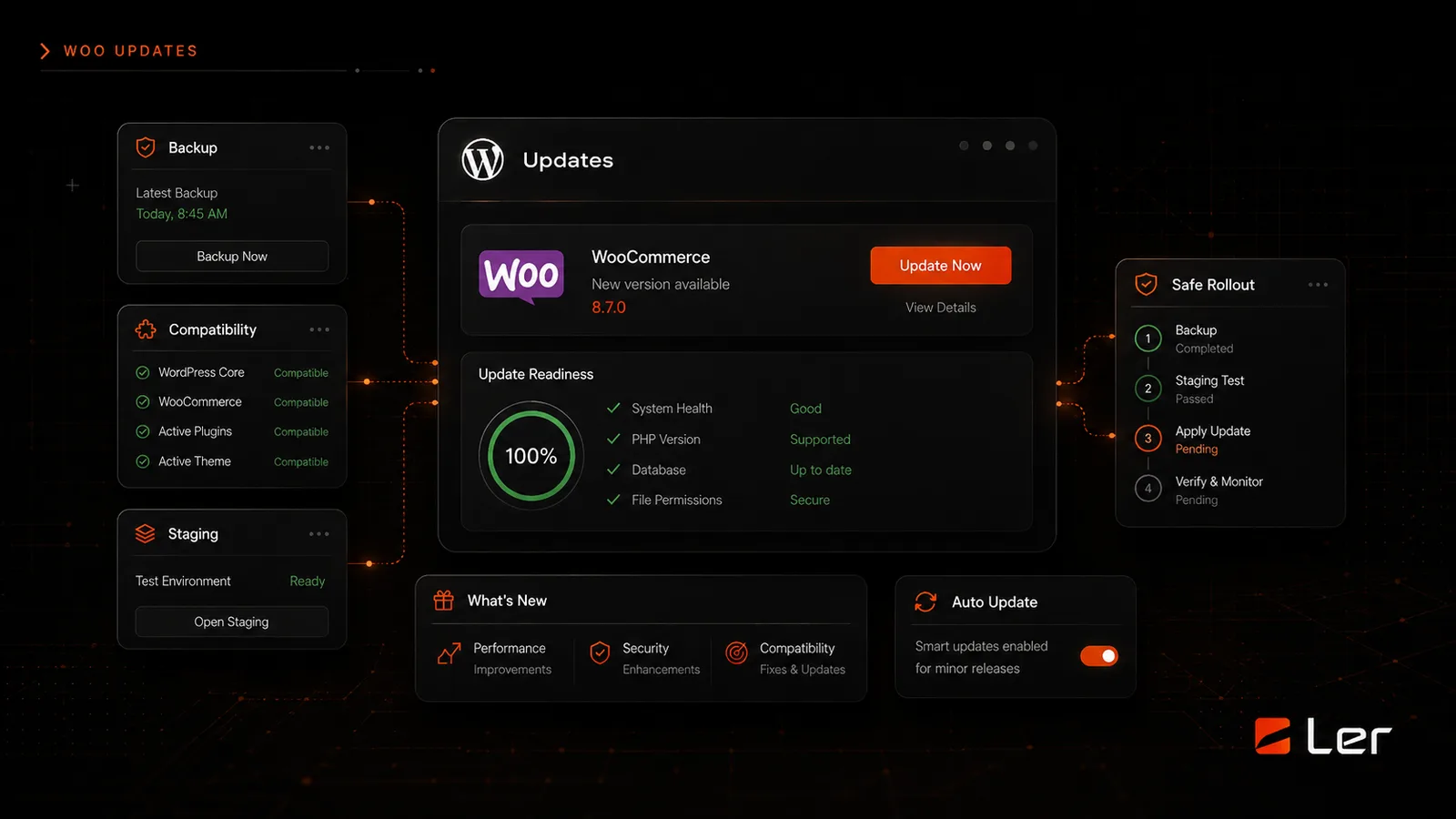
Plugins can add useful features to WordPress, but every plugin also becomes part of the site you have to maintain. The right process is simple: check the need, protect the site, install carefully, and test before you move on.
Before you install anything
Start by confirming what problem the plugin is supposed to solve. A plugin should have a clear job: forms, SEO settings, analytics, image compression, events, memberships, e-commerce, or another specific function.
Avoid installing multiple plugins that do the same thing. Overlapping tools can slow the site down, duplicate scripts, conflict with each other, or create confusing settings later.
Check the plugin details before you install it. Look for recent updates, active support, compatibility with your WordPress version, a clear author, and reviews that mention the feature you actually need.
Install the plugin
In WordPress, go to Plugins, then Add New. Search for the plugin by name, open the details, and confirm it is the right one. Click Install Now, wait for WordPress to finish, then click Activate.
If the plugin came as a ZIP file from a paid vendor, use Upload Plugin instead. Only upload ZIP files from a vendor you trust. Do not install plugin files from random download links or email attachments.
After activation, look for the plugin settings page. Some plugins add a menu item in the left sidebar. Others place settings under Settings, Tools, WooCommerce, or the editor itself.
Configure only what you need
Most plugins include more options than a small business site needs. Turn on the specific feature you installed the plugin for, then leave advanced settings alone unless you know why they matter.
If the plugin connects to an outside service, use the official account, API key, or integration instructions from that service. Keep passwords and API keys private. If you are unsure, send the instructions to LER and I can place them safely.
When a plugin asks to collect data, add tracking scripts, or change site behavior, read the prompt before accepting. Some options are useful. Others add marketing scripts or notices you may not want.
Test the site after activation
Open the homepage, a service page, the contact page, and any page related to the plugin. Check desktop and mobile if possible. Submit a test form, click a booking button, or run through the feature you added.
If something looks broken, deactivate the plugin first. Then clear cache if your site uses caching. If the issue disappears, the plugin probably needs different settings or a safer alternative.
Remove plugins you decide not to use. Inactive plugins still need updates and can create clutter. A clean plugin list is easier to maintain.
Official references
Use these public WordPress references for the platform details behind this guide.
Related Client Guides

How to Add Custom CSS in WordPress
How to make small style changes in WordPress without editing theme files or breaking the design system.
How to Add Custom Code to the Header or Footer
A plain-English guide to adding tracking, embeds, verification tags, and small scripts without editing theme files.
Related topics