
Blog
WordPress Maintenance Checklist for Business Owners
 Ed Romero

A business website does not stay healthy by accident. WordPress needs a calm maintenance routine that protects updates, backups, security, speed, and the parts of the site that generate trust.
Start with a current backup
Before updating plugins, themes, WordPress core, or ecommerce extensions, confirm that a recent backup exists and can actually be restored. A backup that has never been tested is only a hopeful file.
For business sites, keep both file backups and database backups. The database carries posts, settings, orders, form submissions, and other moving pieces that often matter more than the visible theme files.
Update in the right order
Do not click every update button at once on an important website. Update WordPress core, theme files, plugins, and ecommerce tools in a controlled order, checking the important pages and workflows after each meaningful group.
If the site has WooCommerce, booking, memberships, custom forms, or payment tools, test those paths after updates. A homepage can look fine while a checkout or intake form is broken.
Watch the business-critical pages
The most important pages are usually the ones that create leads, sales, appointments, or trust. Keep a short list of those pages and review them after maintenance work.
Check the homepage, service pages, contact page, forms, checkout, login areas, portfolio pages, and any landing pages tied to ads or local SEO. Maintenance should protect the parts of the site that affect revenue.
Keep security boring
Good website security is usually quiet. Use strong administrator passwords, limit unnecessary accounts, remove abandoned plugins, keep PHP current, and avoid installing tools that are not needed.
The goal is to reduce avoidable risk. A clean WordPress install with fewer plugins, current software, and monitored access is easier to protect than a crowded site full of forgotten experiments.
Review speed after changes
Updates can change how a site loads. New plugin versions may add scripts, image sizes may grow, and small visual changes can affect mobile performance.
After a maintenance session, check the pages people actually visit. Compress oversized images, remove unused scripts where possible, and keep the site fast enough that visitors do not feel friction.
Keep a maintenance log
Write down what changed, when it changed, who changed it, and what was tested. This does not need to be complicated. A simple log can save hours when something starts acting differently later.
For a business owner, the value is clarity. You should know whether the site is being watched, what was fixed, and what still needs attention.
Read what’s next
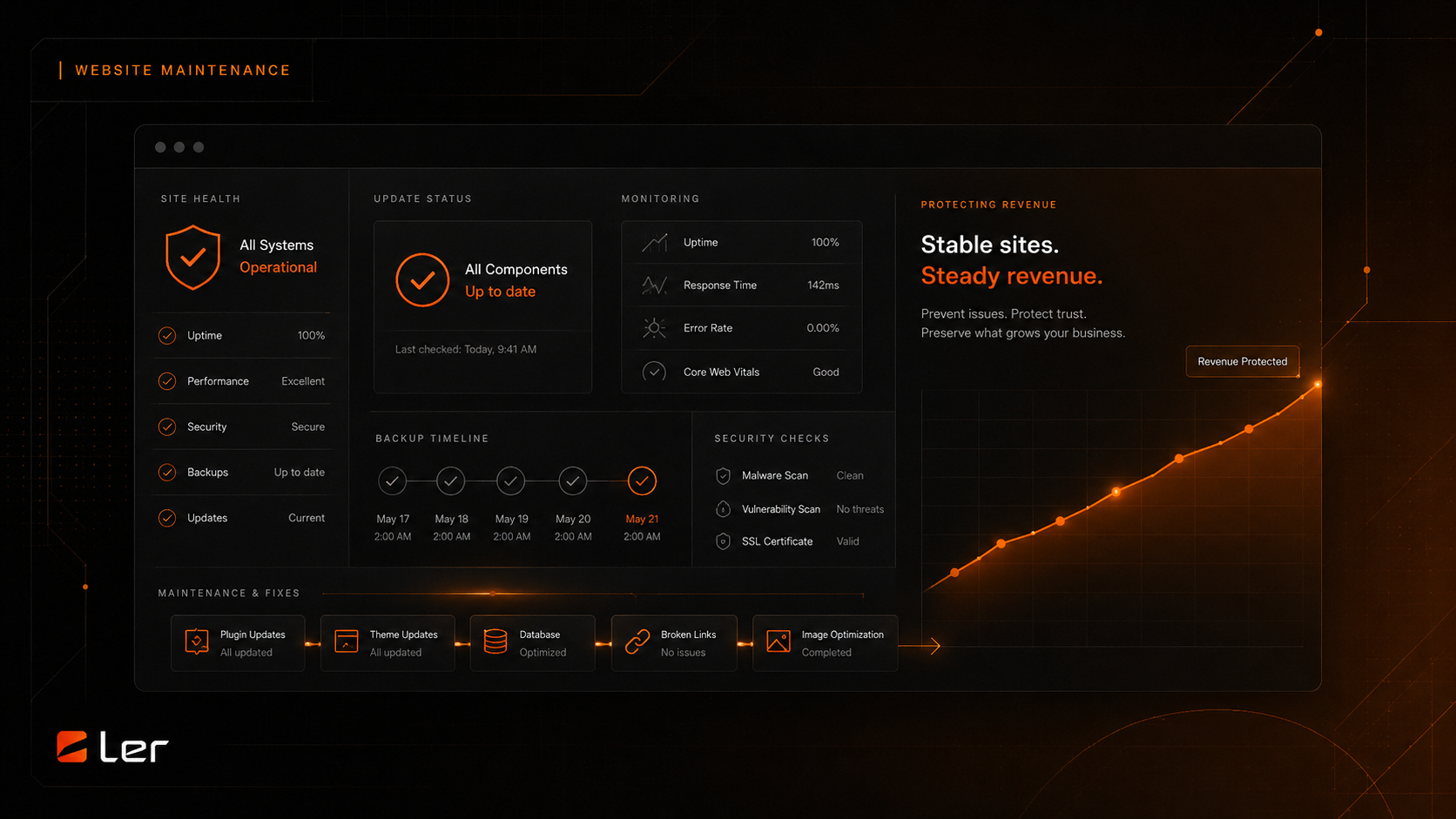
How Website Maintenance Protects Revenue
Why updates, monitoring, backups, and small fixes matter for revenue and trust.
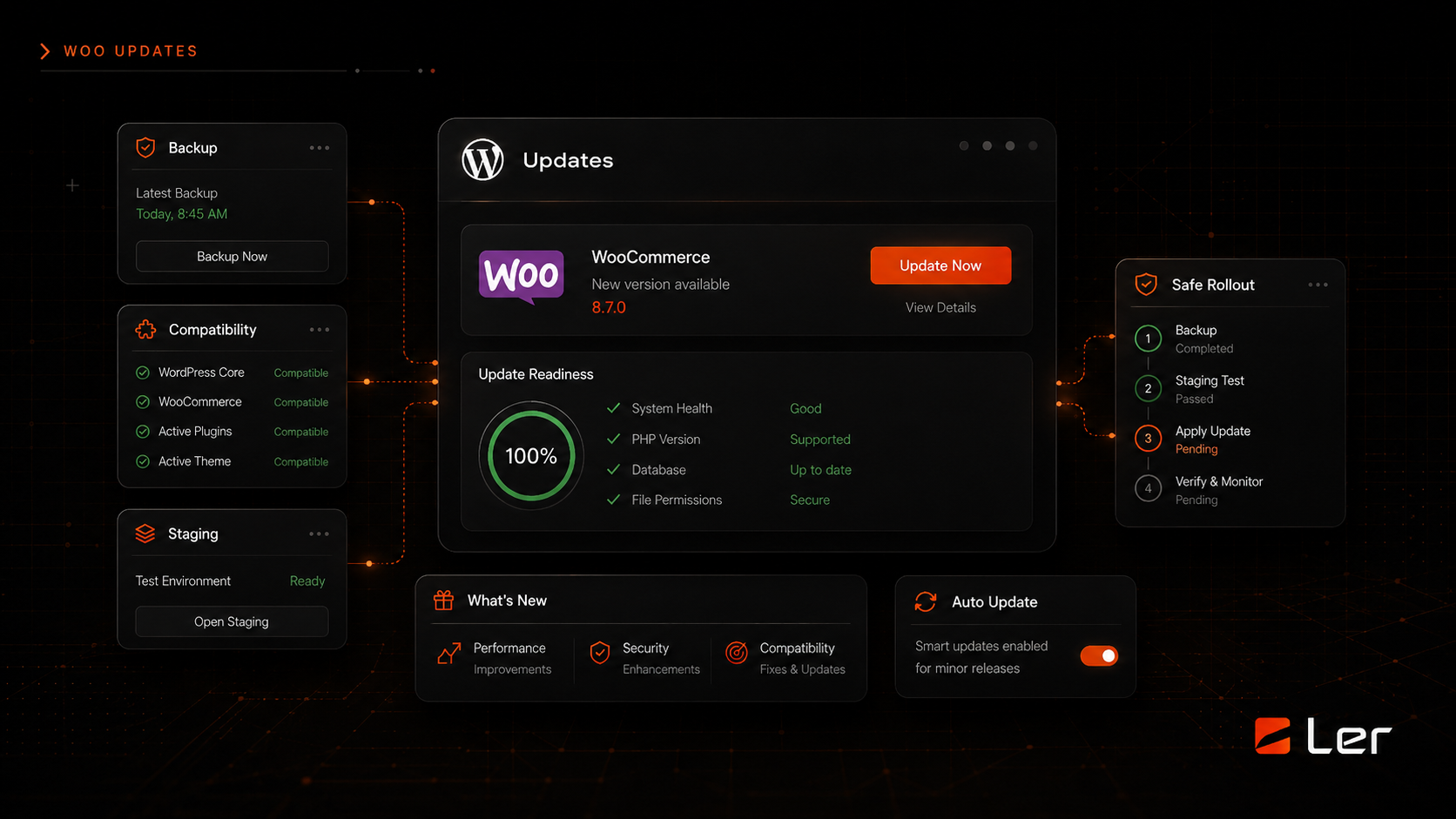
WordPress Is Asking for a WooCommerce Update
What to check before updating WooCommerce and how to avoid breaking the storefront.
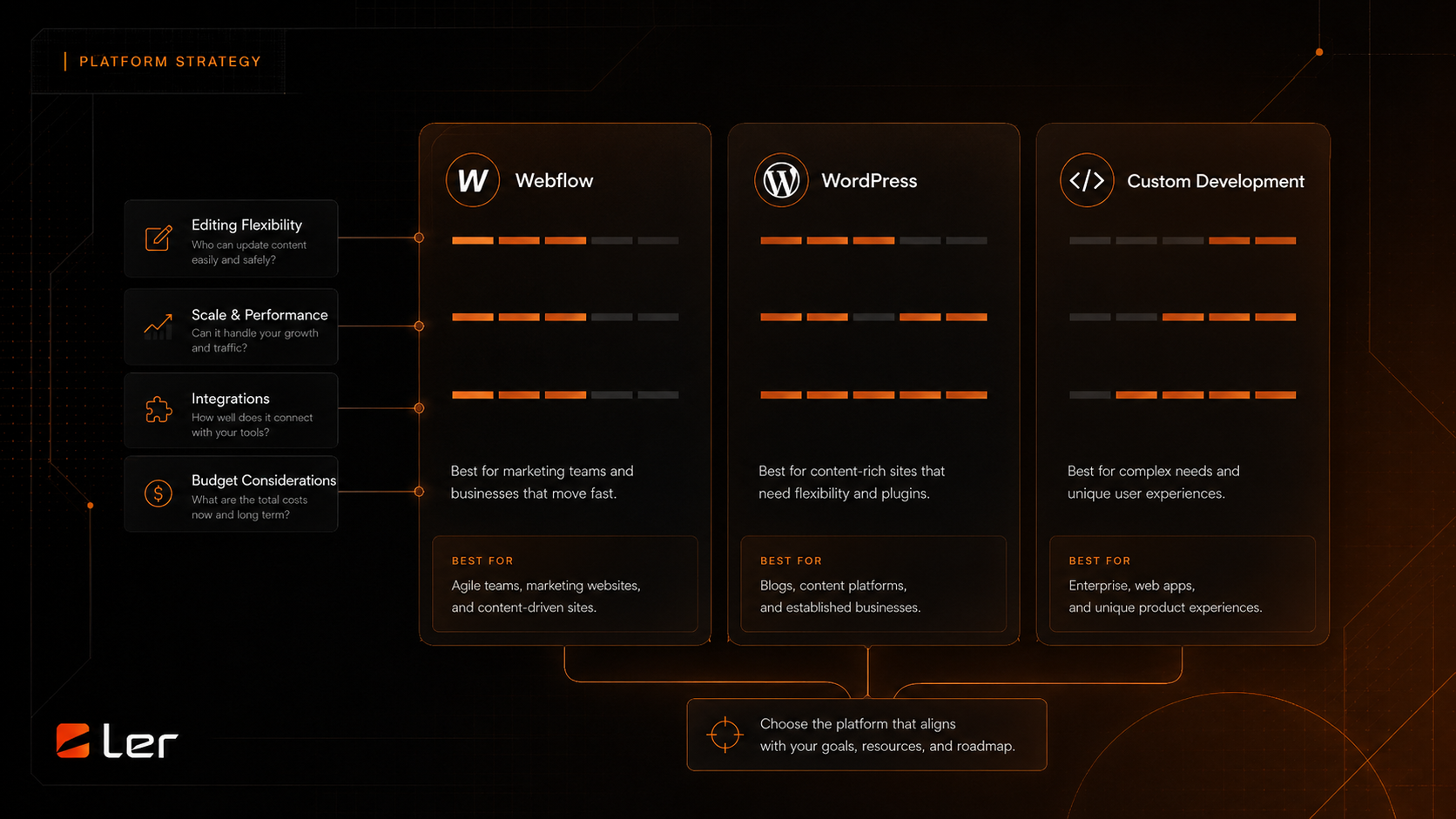
Affiliate Program vs. Agency Partner Program
How to choose between making a useful introduction and building a deeper delivery relationship with LERWS.

SEO Checklist Before Launching a Redesigned Website
A pre-launch SEO checklist for redesigned websites covering redirects, metadata, content, analytics, speed, and search visibility.

Website Redesign Cost Factors for Established Businesses
A plain-English breakdown of the factors that change website redesign scope, complexity, and timeline without publishing private project pricing.
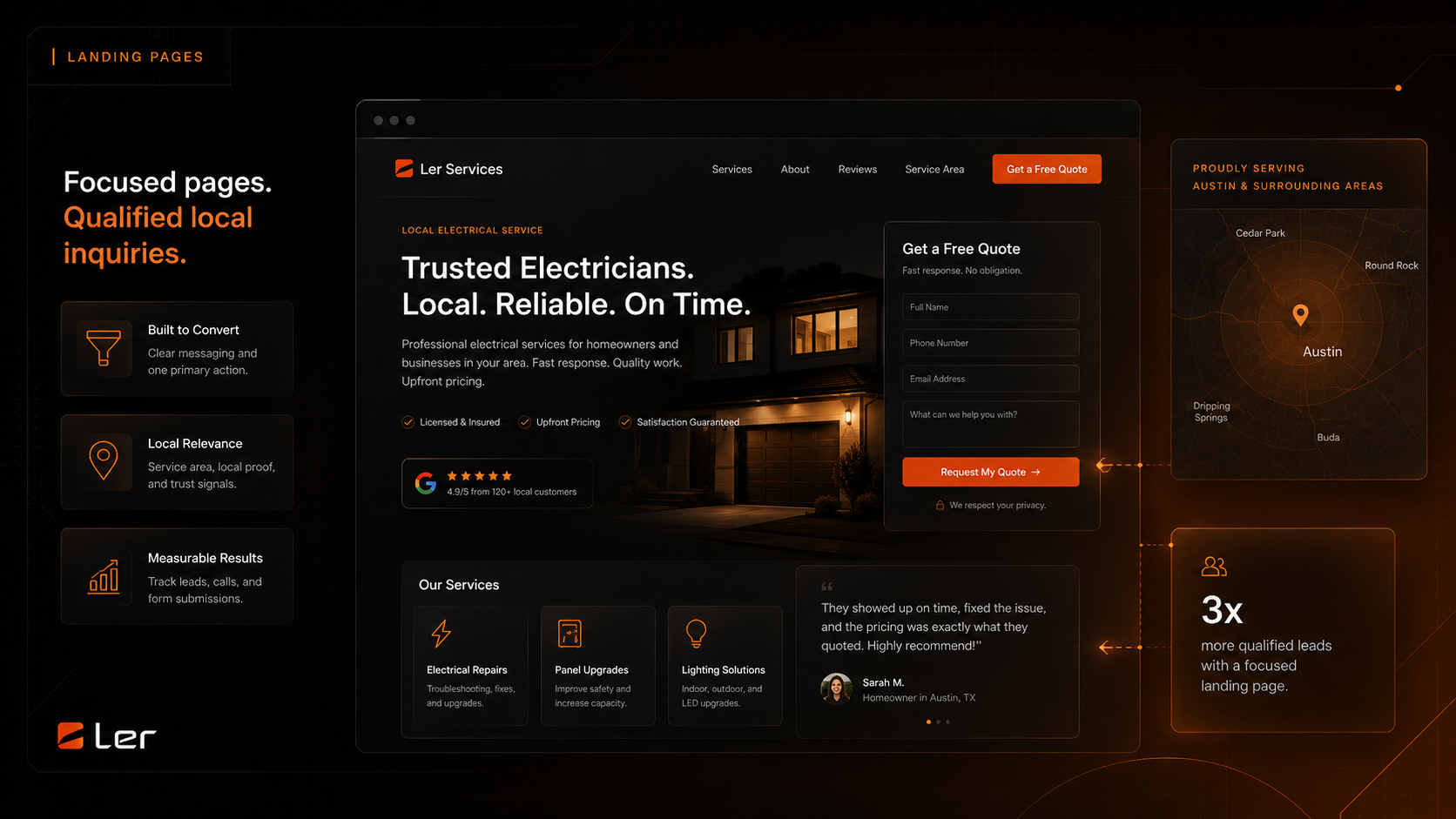
Local Service Landing Page Structure That Converts
A practical structure for local service landing pages that need clearer offers, stronger proof, better location signals, and more qualified inquiries.