
Resources
How to Back Up Your Site
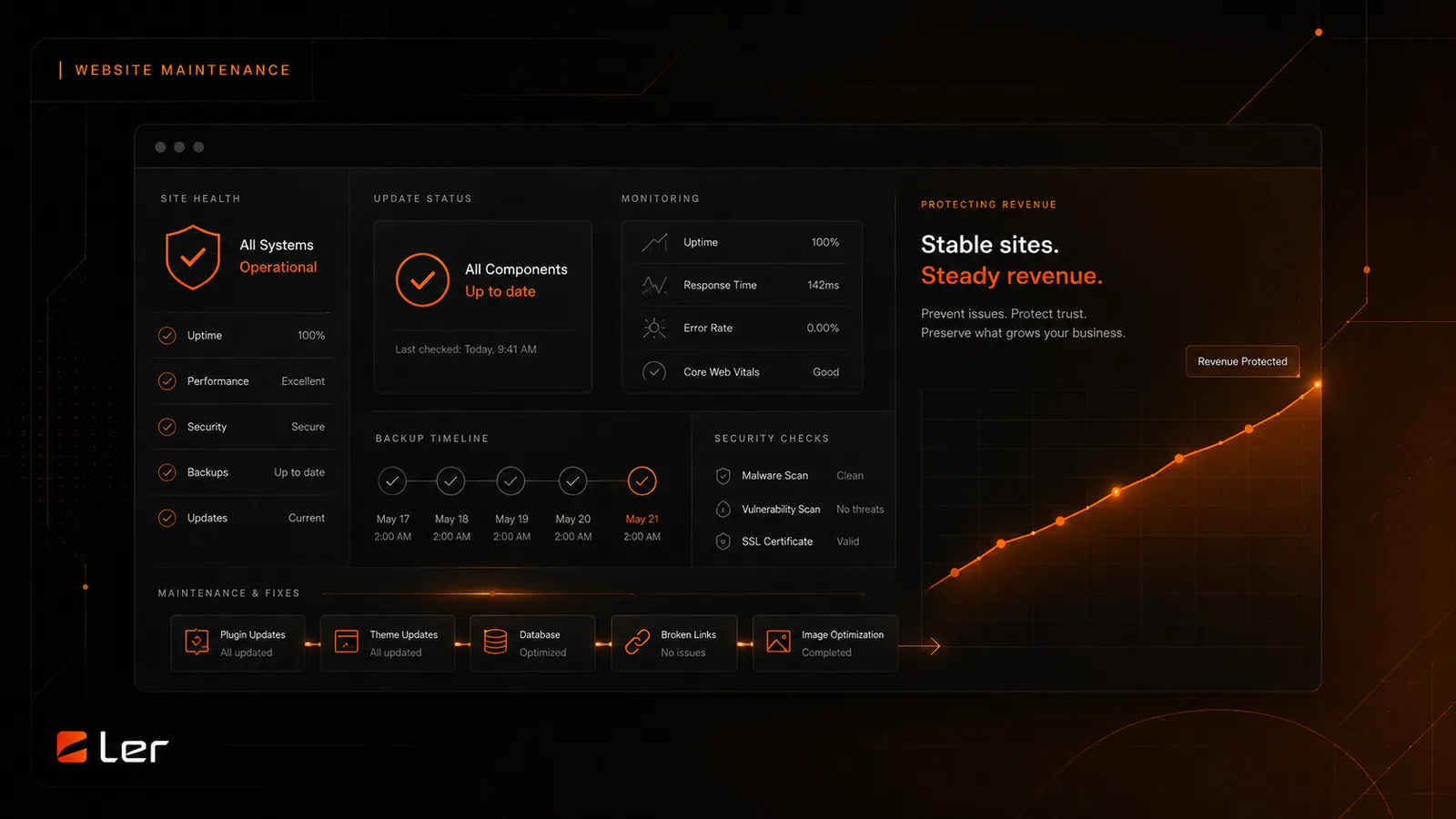
A website backup is only useful if it includes the right parts of the site and can be restored when something goes wrong. For WordPress, that usually means files, database, and a clear record of where the backup lives.
Know what needs to be backed up
WordPress has two main parts: files and database. Files include WordPress core, themes, plugins, uploads, media, and custom code. The database includes pages, posts, settings, users, orders, form entries, and many plugin settings.
A full backup should include both. A file-only backup will not restore your latest content. A database-only backup will not restore missing uploads, theme files, or plugin files.
For e-commerce, membership, or booking sites, the database is especially important because orders, users, and appointments can change throughout the day.
Use automatic backups
Most business sites should have automatic backups on a predictable schedule. For active sites, daily backups are common. Stores and high-activity sites may need more frequent backups.
Backups should not live only on the same server as the website. If the server has a problem, local-only backups may be unavailable. Use off-server storage when possible.
Keep more than one restore point. If a problem goes unnoticed for several days, the most recent backup may already include the issue.
Create a manual backup before risky work
Create a fresh manual backup before updates, plugin changes, theme edits, database work, migrations, or major content imports.
Label the backup with the reason, such as "before WooCommerce update" or "before homepage redesign". Clear labels make it easier to choose the right restore point.
If LER is doing the work, I create or confirm the restore point before touching production.
Confirm the backup can restore
A backup should be tested occasionally. That does not always mean restoring over the live site. It can mean restoring to staging or confirming that the backup tool can access the right files and database tables.
Know who can restore the backup and how long it usually takes. In an emergency, access and timing matter.
After restore, test the site. A restored site should load pages, forms, checkout, login, and media correctly.
Official references
Use these public WordPress references for the platform details behind this guide.
Related Client Guides
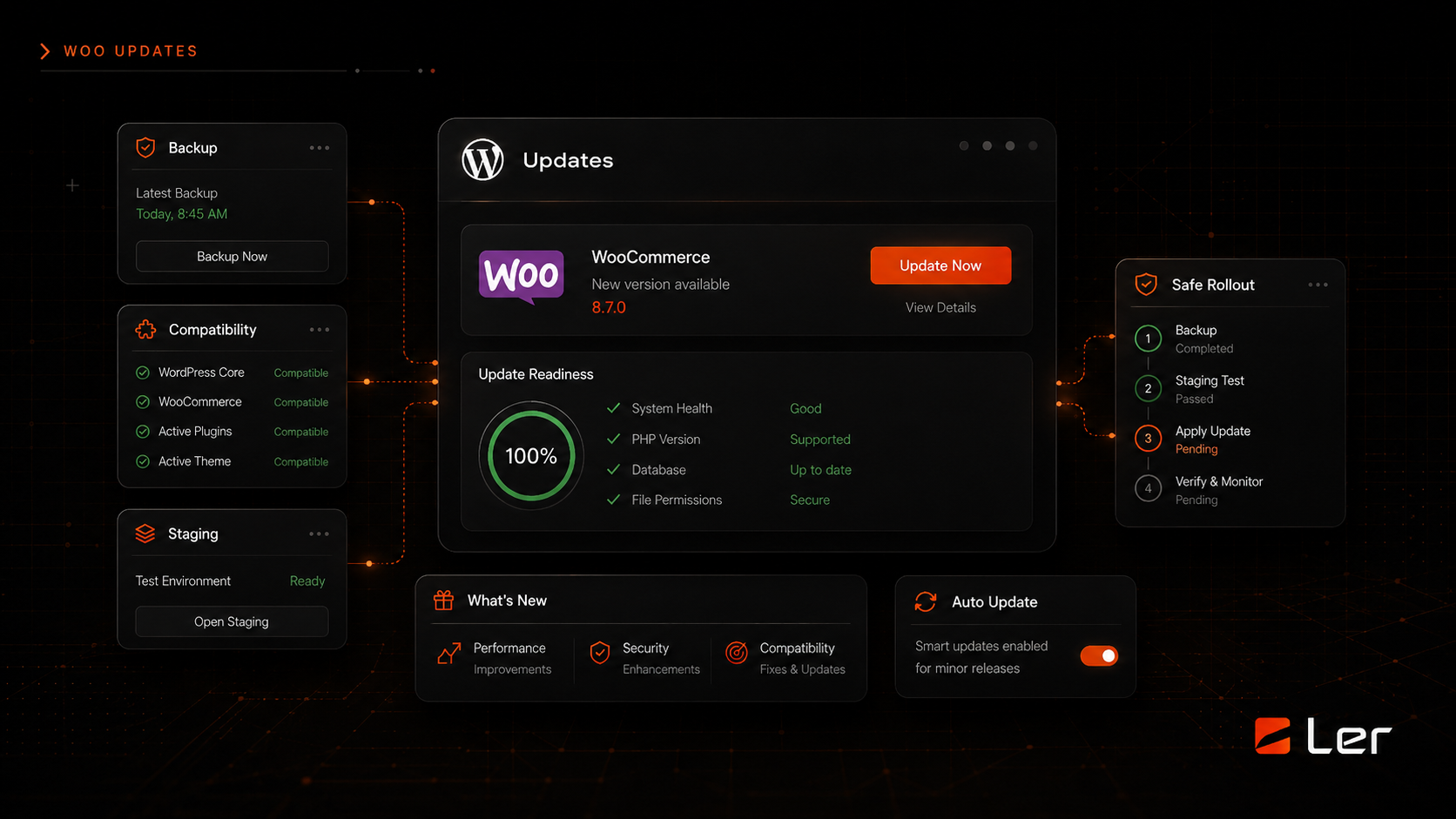
How to Add a Plugin in WordPress
A beginner-friendly way to choose, install, activate, and test a WordPress plugin without creating unnecessary risk.
How to Add Custom CSS in WordPress
How to make small style changes in WordPress without editing theme files or breaking the design system.
Related topics