
Resources
How to Update WordPress Safely
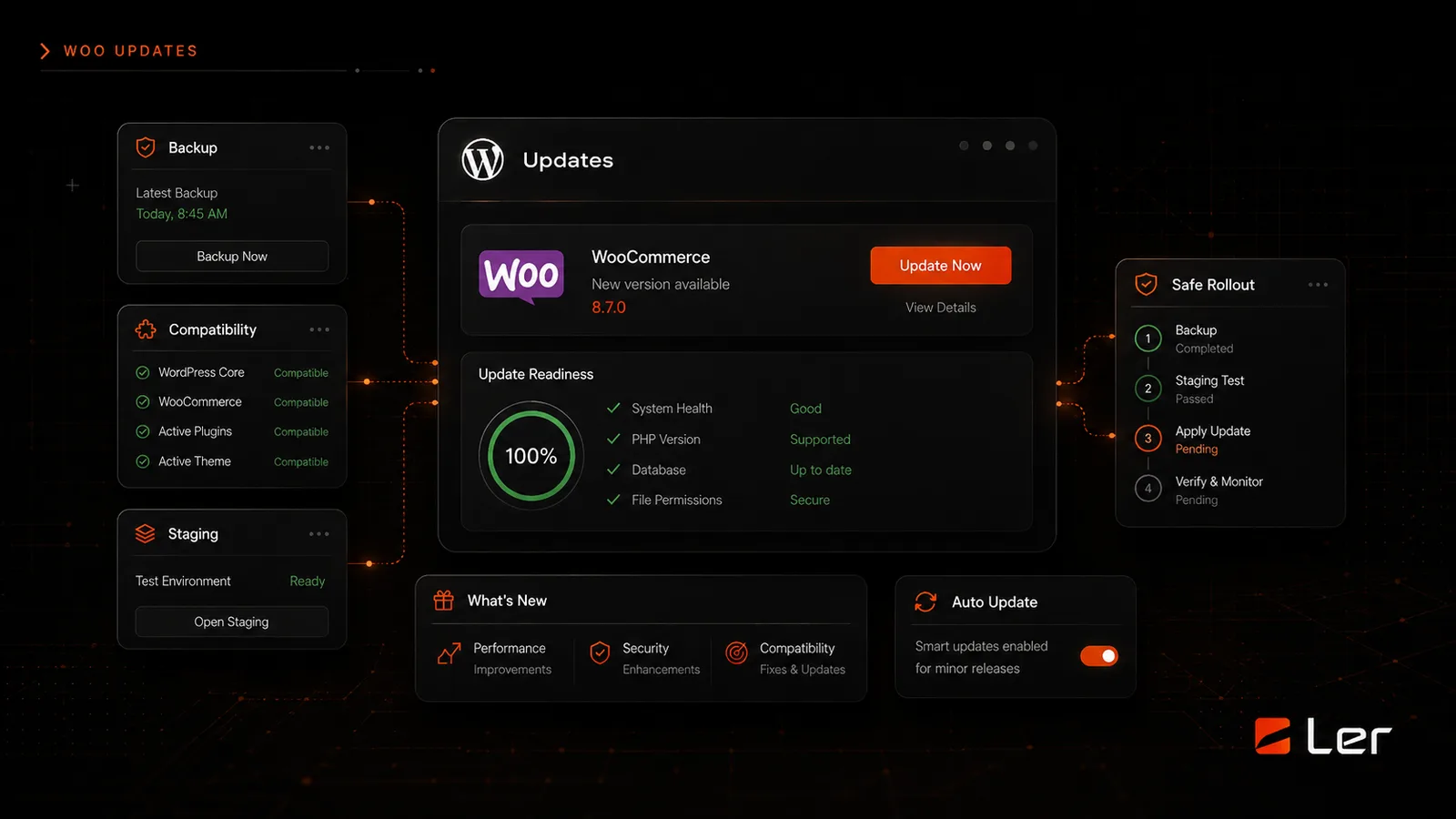
WordPress updates are normal maintenance, not a button to click casually. The safest process is backup, staging when needed, update in a sensible order, then test the parts of the site that make the business work.
Start with a backup
Before updating WordPress, make sure you have a current backup of both files and database. A file backup protects themes, plugins, uploads, and custom code. A database backup protects pages, settings, orders, users, form entries, and content.
Know how to restore the backup before you need it. A backup that no one can restore is not much protection.
If your site is on an LER care plan, ask me to handle updates on the managed schedule. I already check backups, compatibility, and priority workflows.
Use staging for higher-risk updates
Use a staging site when the update affects WooCommerce, forms, memberships, bookings, payment, custom theme code, major page builders, or a large group of plugins at once.
A staging site is a private copy of the website where updates can be tested before they touch the live version.
After testing on staging, schedule the live update at a low-traffic time. Do not update a busy store or lead-generation site in the middle of a campaign unless there is an urgent security reason.
Update in a controlled order
Update one or a few items at a time instead of clicking update all. This makes it easier to identify the cause if something changes.
A common order is plugins first, then theme, then WordPress core when compatibility is confirmed. WooCommerce and major extensions deserve extra testing before and after.
After each meaningful group, refresh the homepage and key workflows. Do not wait until every update is done to discover a problem.
Test the business-critical paths
Test the pages and actions that matter most: contact forms, booking buttons, checkout, login, account pages, search, navigation, and any integrations.
For WooCommerce, add a product to cart, view cart, start checkout, confirm shipping/tax behavior if relevant, and verify payment options still appear.
If something breaks, stop updating and restore or roll back the affected piece. Document what changed so the fix is faster.
Official references
Use these public WordPress references for the platform details behind this guide.
Related Client Guides
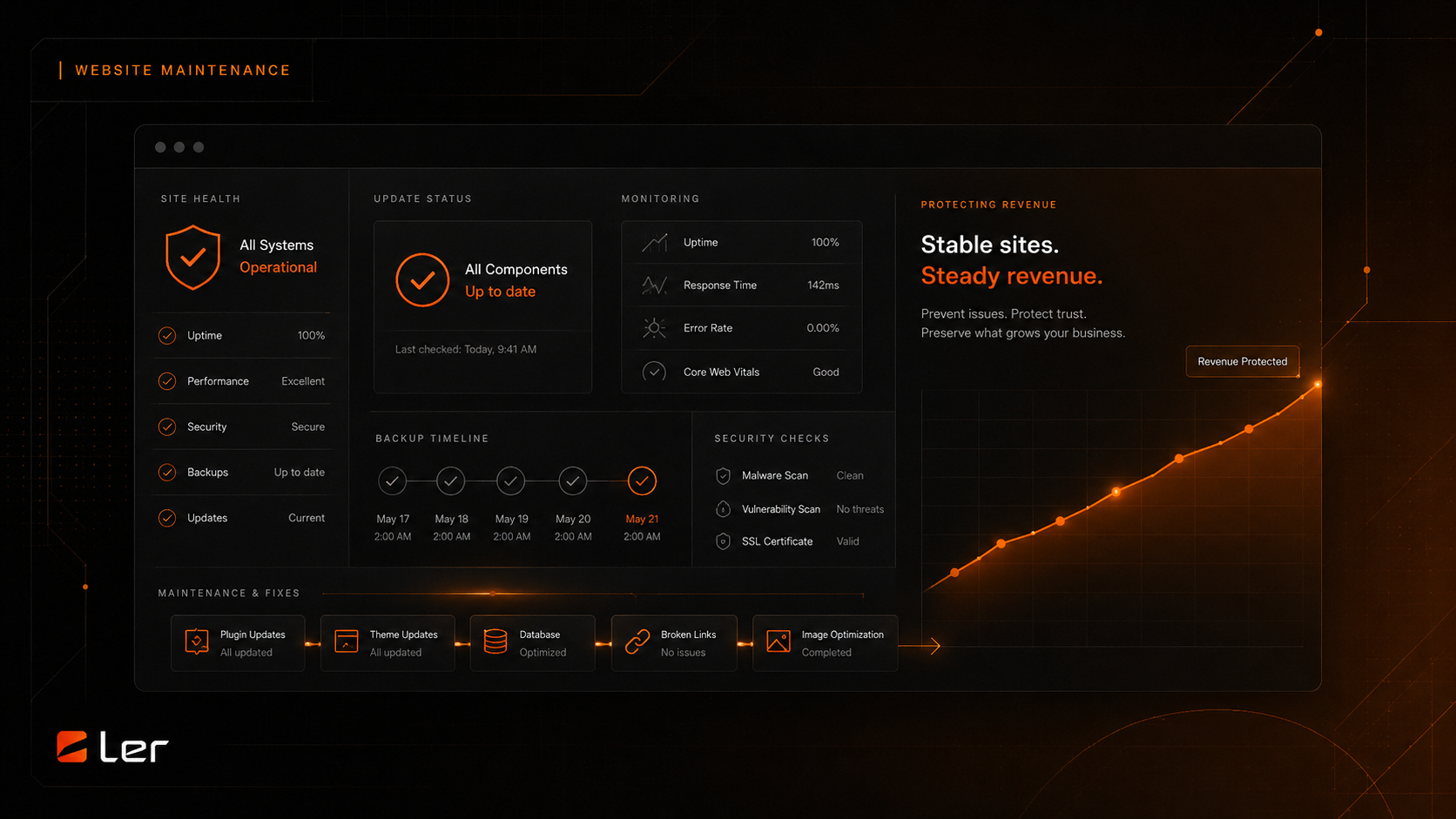
How to Back Up Your Site
What a real website backup includes, where to store it, and how to know whether it can actually be restored.
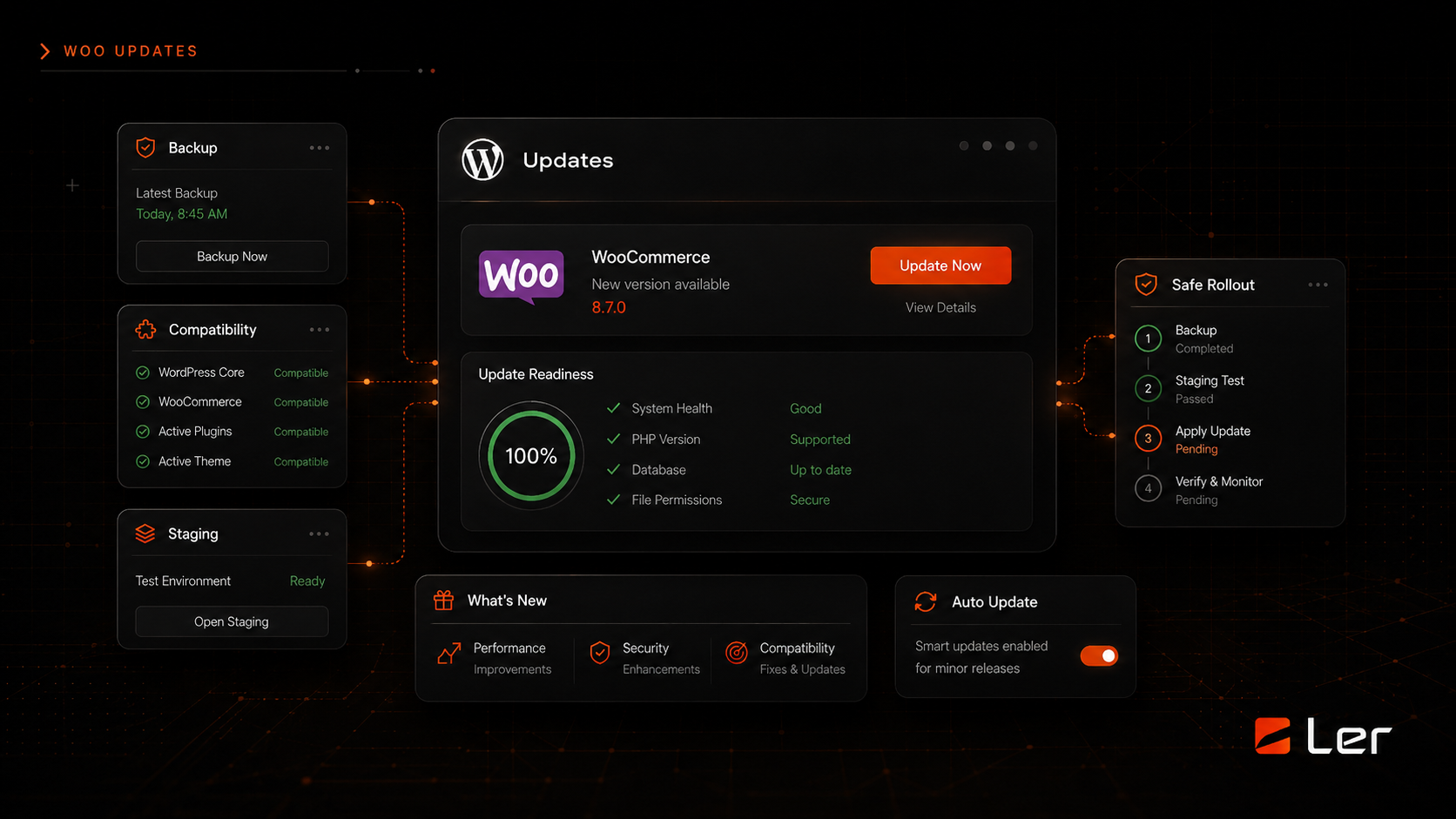
How to Add a Plugin in WordPress
A beginner-friendly way to choose, install, activate, and test a WordPress plugin without creating unnecessary risk.
Related topics